How to Fix Roblox Lag on Mobile and PC
Nothing kills the fun faster than Roblox lagging right in the middle of a game. Your character warps around, the screen stutters, and you end up losing just because the game froze at the wrong moment. Sound familiar?
Good news is most lag is fixable, and you do not need a fancy device to sort it out. A lot of it comes down to a few settings and habits. This guide covers the fixes for both mobile and PC, from quick five-minute tweaks to the deeper stuff. Let’s get your game running smoothly again. If you’re using the modded version, these same performance tips work there too.
Why Does Roblox Lag?
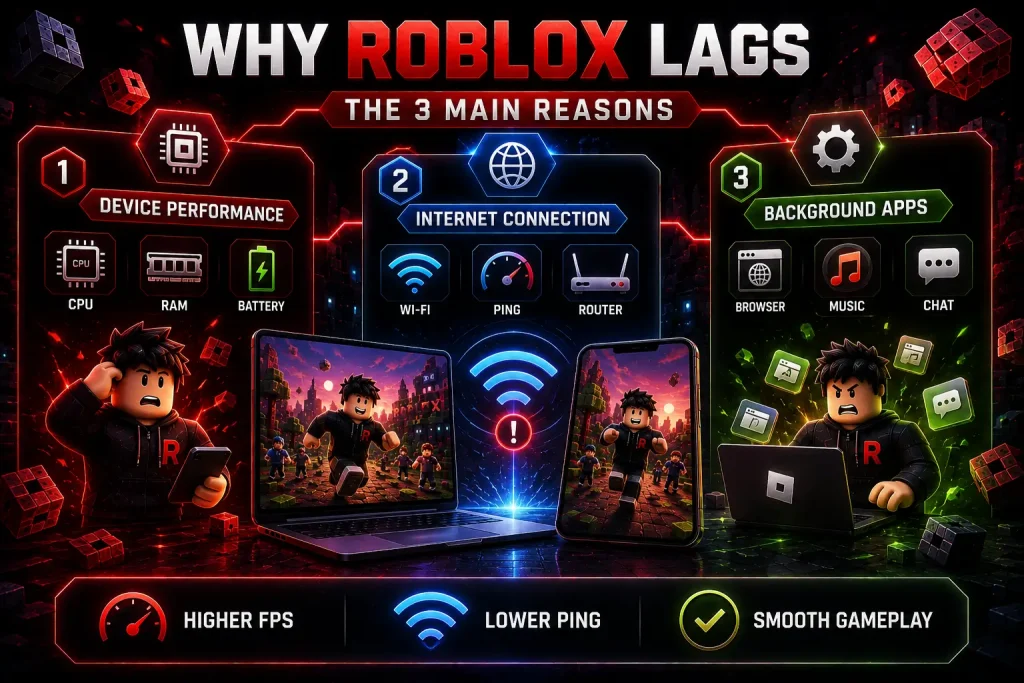
Before you fix it, it helps to know what is actually causing it. Roblox lag usually comes from one of three things.
The first is your device. Older or budget phones and PCs struggle when the graphics are set too high. The second is your internet. A weak or unstable connection makes your character warp and your actions delay, even when your device is fine. The third is background stuff. Apps running behind the scenes eat up memory and power that Roblox needs.
Figuring out which one is your problem makes the fix a lot faster. If the game looks choppy, it is usually your device or graphics. If your character warps around, it is your connection.
Quick Roblox Lag Fixes
Before diving into settings, try these fast ones. They fix lag for most people in under five minutes.
A lot of the time, one of these alone does the trick. If you are still lagging, keep reading for the device-specific fixes.
How to Fix Roblox Lag on Mobile
Phone lag is usually about graphics, memory, or heat. Here is how to sort each one.
Lower the Graphics
This is the biggest fix. Open Roblox, join a game, tap the menu icon in the top left, and go to Settings. Change Graphics Mode to Manual, then drop the quality down to around level 3 or 4. Lower graphics means way less strain on your phone.
Close Background Apps
Music apps, browsers with a bunch of tabs, video apps- they all eat memory. Open your recent apps and swipe them all away before you play. This frees up power for Roblox.
Turn Off Battery Saver
Battery saver slows down your phone’s processor on purpose, which drops your frame rate. Go to your settings, find Battery, and turn off power saving while you play. Plug in your charger if you can.
Keep Your Phone Cool
Here is one thing people miss. When your phone gets hot, it slows itself down to cool off, and your FPS tanks after about ten minutes. Take your case off, play near a fan, and your game stays smooth longer.
Free Up Storage
A phone with almost no space left runs slow across everything, Roblox included. Delete old photos, videos, and apps you do not use. Aim for at least 5 GB free.
How to Fix Roblox Lag on PC
PC lag is mostly graphics settings and background programs. These fixes hit the hardest.
Change the Graphics Settings
Hit Esc during a game, go to Settings, and set Graphics Mode to Manual. Drop the graphics quality down to level 1 to 3. Turn on fullscreen too, since windowed mode causes lag for a lot of people.
Unlock and Set Your Frame Rate
Roblox used to cap at 60 FPS. Now you can raise it. In the same settings, find Maximum Frame Rate and set it to match your monitor, like 120 or 144. This alone makes a big difference on a decent PC.
Close Background Programs
Chrome, Discord, and other apps eat your memory. Press Ctrl+Shift+Esc to open Task Manager and close what you do not need. Try to have at least 4 GB of RAM free before you launch.
Update Your Graphics Drivers
Old drivers cause stutters and crashes. Update your GPU drivers from Nvidia, AMD, or Intel. This fixes a surprising amount of lag on its own.
Use Your Dedicated GPU
On laptops, Roblox sometimes runs on the weak built-in graphics instead of the real GPU. Go into your Nvidia or AMD control panel and set Roblox to use the dedicated GPU. Set your power plan to High Performance too.
How to Fix Ping and Connection Lag
If your character warps around but your FPS looks fine, the problem is your connection, not your device. Different fix entirely.
Start by testing your speed. Roblox needs about 4 to 8 Mbps for smooth play. If yours is lower, that is your issue.
Use a cable connection if you can. Wired beats Wi Fi every time for stability. If you have to use Wi Fi, get close to the router and disconnect other devices hogging the connection.
You can also try switching servers. Some games let you pick a server, so choose one closer to your region for lower ping. And if your home Wi Fi keeps lagging, test it on mobile data for a minute. Sometimes your provider just has a bad route to the game servers.
When the Lag Is Not Your Fault
Sometimes you did everything right, and it still lags. In that case, it might not be you at all.
If the whole game feels slow but your FPS and ping both look fine, the game’s server is probably overloaded. This happens in popular games during busy hours. Try a different server, or just play at a quieter time. Nothing you change on your end will fix an overloaded server.
Tips to Keep Roblox Running Smoothly
A few habits keep the lag away for good.
FAQS
Conclusion
Most Roblox lag comes down to three things. Your device, your graphics settings, or your connection. Once you know which one is causing it, the fix is usually quick.
Start with the easy stuff. Lower your graphics, close background apps, and keep your device cool. If your character is warping, look at your internet instead. And if the whole game is slow while everything on your end looks fine, it is just a busy server, so try another one.
Sort those out, and Roblox should run smoothly again. No more warping around at the worst possible moment.