How to Install Roblox Mod on Android Safely (Step-by-Step Guide)
Downloaded the Roblox mod file but now your phone won’t install it? You’re not the only one. Android blocks these files by default, so a lot of people get stuck right at the install step and think something is broken.
Nothing is broken. Your phone is just being careful, and there’s a quick way around it. This guide walks you through the whole thing, from turning on the right setting to fixing the errors that pop up. By the end, the mod will be installed and ready to play.
Before You Install Roblox Mod
Just a couple of quick things to sort out first. It saves you trouble later.
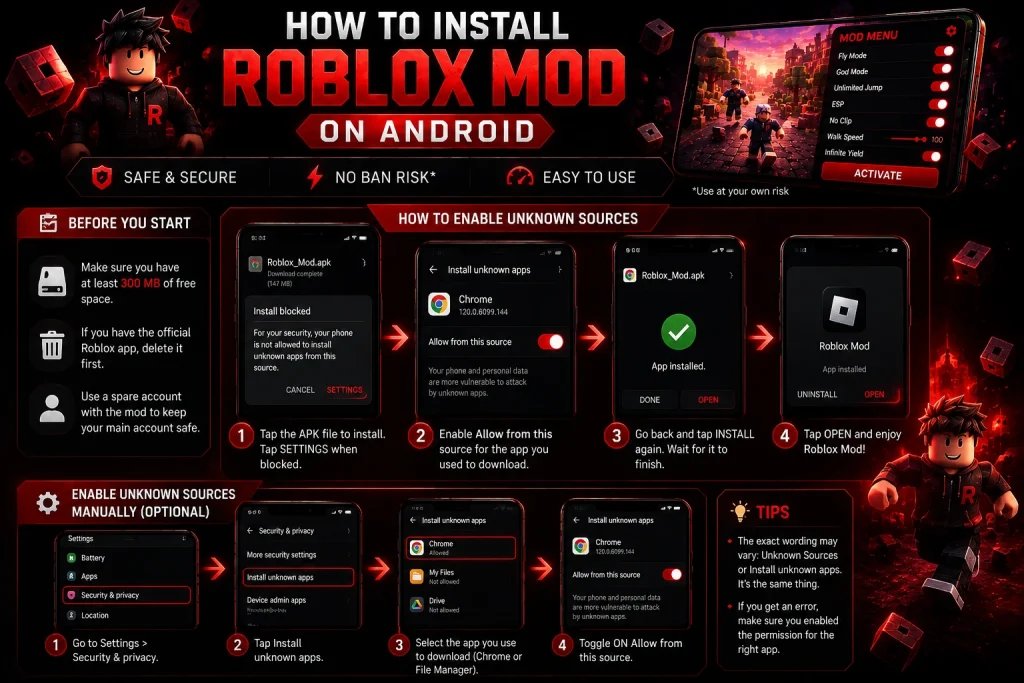
Make sure you have enough free space on your phone, at least 300 MB to be safe. The file needs room to unpack while it installs, and low storage is one of the top reasons an install fails without any clear reason why.
Also, if you already have the normal Roblox from the Play Store, delete it first. The mod and the official app clash because they share the same name but different signatures. Your phone will block the install if both try to sit there together. So remove the official one before you begin.
And one more thing. Use a spare account with the mod, not your main one. That keeps your real account safe if anything goes wrong. If you’re still deciding whether a modded version is right for you, learn how Roblox mods work before installing one.
How to Enable Unknown Sources
This is the setting that lets your phone install apps from outside the Play Store. Without it, nothing happens.
On most phones, you turn it on during the install itself. When you tap the file, a message pops up saying your phone is not allowed to install from this source. Tap Settings right there, then flip on Allow from this source. Done.
Want to turn it on beforehand? Go to your phone Settings, then Security or Privacy, then find Install unknown apps. Pick the app you’ll download with, usually Chrome or your file manager, and switch the permission on.
The exact wording changes a little from phone to phone. Some say Unknown Sources, some say Install unknown apps. It’s the same thing either way.
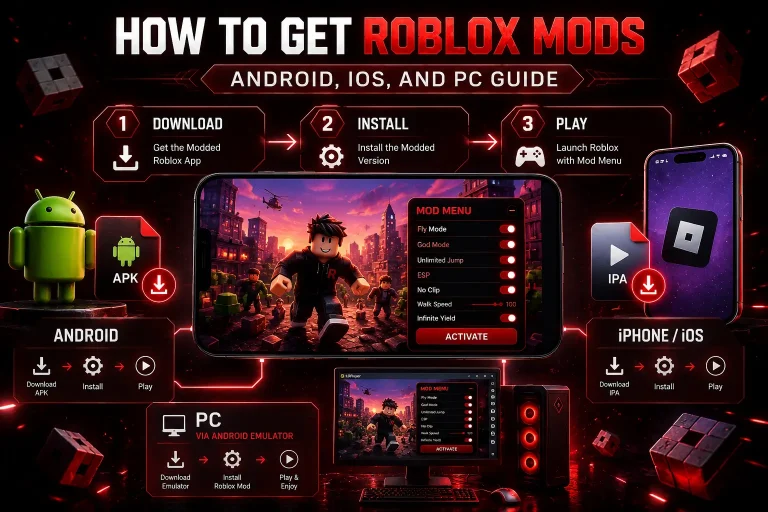
How to Install Roblox Mod on Android
Now for the main part. Take it one step at a time, and you’ll be fine.
Step 1: Download the File
Tap on the latest Roblox mod APK download button on this page and let the mod file save to your phone. Give it a minute on slower connections. Wait for it to fully finish, since a half-downloaded file will not install.
Head to your Downloads folder or tap the file straight from your notification bar. You’ll see the Roblox mod APK sitting there. Tap it.
If Unknown Sources is off, the pop-up shows up now. Tap Settings, switch the permission on, then back out and tap the file again.
Step 4: Tap Install
Hit the Install button and let it run. It usually takes a few seconds, sometimes a little longer on older phones. Just leave it alone while it works.
Step 5: Open and Log In
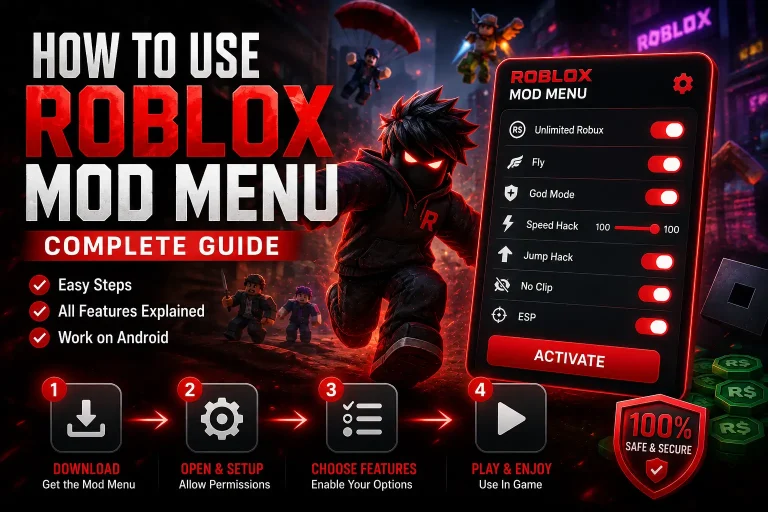
Once it says installed, open the app and sign in with your spare account. The floating menu button shows up in your game, and you’re all set. Not sure what each feature does? Our Roblox Mod Menu guide explains every option inside the menu.
How to Fix Play Protect Blocking It
Sometimes Google Play Protect steps in and blocks the install. It flags anything from outside the Play Store, even when the file is fine. This is common with mods, so don’t panic.
Here’s how to get past it. When the block message shows, look for a small option that says Install anyway or More details, and tap that. On a lot of phones, that’s all it takes.
If it keeps blocking, you can pause Play Protect for a moment. Open the Play Store, tap your profile icon, then tap Play Protect. Hit the gear icon, and turn off the scanning toggle. Install the mod, then switch it back on afterward.
Only do this with a file from a trusted page. Play Protect blocks bad files too, so the setting exists for a reason. Turning it off should be a quick thing, not something you leave off forever.
If you’re unsure how Android handles app security, Google’s Play Protect documentation explains why APK files are sometimes flagged.
Common Install Problems and Fixes
Ran into an error? Here are the ones people hit most, and how to sort them.
App Not Installed
Almost always the official Roblox is still on your phone. Delete it, then install the mod again. If that’s not it, your download may be incomplete, so grab the file fresh.
Installation Failed
Usually a broken or half-finished download. Delete the file and download it again on a stable connection.
Not Enough Storage
The file needs space to unpack. Clear out some old apps or photos, then try once more.
App Keeps Crashing After Install
Low memory or an outdated phone, most times. Close your background apps, clear the cache, and make sure your Android is updated.
Blocked by Play Protect
Covered above. Tap Install anyway, or pause Play Protect while you install.
If the game launches but feels slow or keeps freezing, our Roblox lag guide covers the most effective performance fixes for Android devices.
Tips for a Safe Install
A few habits keep the whole thing smooth and safe.
FAQS
Conclusion
Installing the Roblox mod on Android is simple once you know the two things that trip people up. Turn on Unknown Sources, and delete the official app first. Sort those, and the install goes through without a fight.
If Play Protect gets in the way, just tap Install anyway or pause it for a minute. And keep it safe by sticking to a trusted file and playing on a spare account.
That’s really all there is to it. Grab the file, follow the steps, and you’ll be playing with the mod in a few minutes.